Main Support
What is included in the Vulnerability Scanner?
The goal of website security is to minimize the risk of intrusion and attack. While a "zero-risk" website does not exist on the internet, identifying and minimizing risk should be the bedrock of your security policies and practices.
The Vulnerability Scan in Watchful is an on-demand tool that performs 6 types of audits related to the security of your site. Thus, this tool will help you assess risk, and give you advice on mitigating the risk factors it identifies.
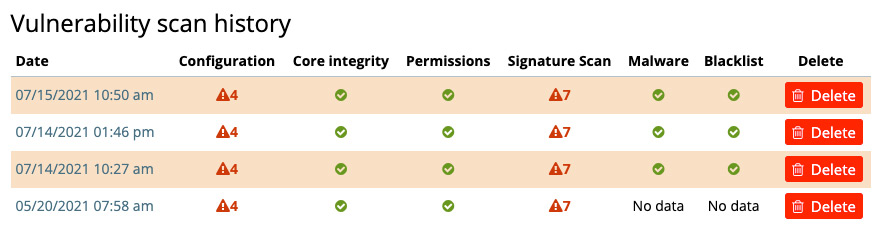
Results from each vulnerability scan are stored and can be reviewed and repeated as needed. This lets you monitor your risk factors over time. Below we will dig into the details of each of the following tools:
- Configuration audit - a website best practices scan for WordPress & Joomla
- Core Integrity audit - a filesystem integrity scan for core files
- Permissions audit - file & folder permissions scan
- Signature Scan - deep, server-side scan of the entire the filesystem for common malware signatures
- Malware scanner - frontend scan for common malwares
- Blacklist scanner - checking if domains are blacklisted
Configuration audit/best practices
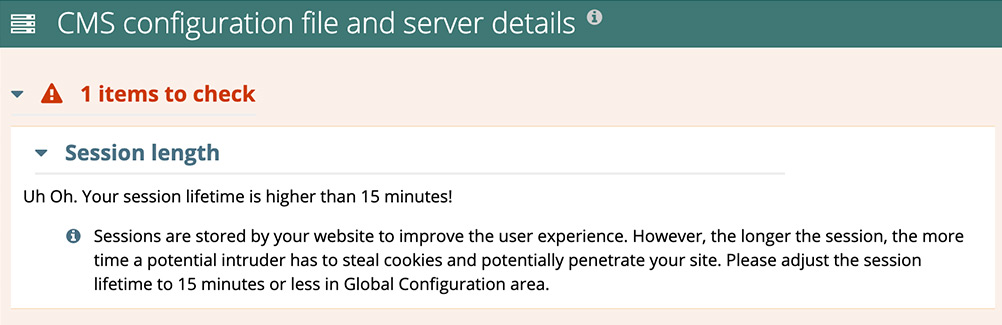
This audit checks for many of the well-known best-practices for PHP-based content management systems such as WordPress and Joomla. Below is a sample result of this audit. If a problem is detected with the website configuration or server, information on how to fix the issue is displayed.
Best practices
Below is the full list of best-practices available in the Vulnerability Scanner. If relevant for your CMS, these will be analyzed during each vulnerability scan.
- Check for unsupported PHP version
- PHP files writable by the web server in the document root
- 2FA enabled for usr login
- security headers: Strict-Transport-Security.
- security headers: X-Frame-Options
- security headers: Content-Security-Policy
- HTTPS not enforced, certificate close to expiry
- Web-accessible archives (.zip, .sql) left in the root
- Backend file editor enabled
- XML-RPC exposed
- readme.html present
- Disable Debug Notices / Debug Mode
- Configure robots.txt for search engine indexing
- Check for known admin username exists.
- Check for .HTACCESS or web.config file.
- Check for known database table prefix
- Remove additional CMS installations
- Check for Session Length over 15 minutes
- Disable Open Comments in the K2 component
- Enable Search Engine Friendly URLs
- Disable Error reporting
- Disable Magic quotes
- Enable mod_zlib
- Enable mod_xml
- Remove Akeeba Kickstart
- Limit maximum execution time of php
- Remove installation directory
- Check for strong Admin Passwords
- Enable GZIP page compression
- Enable caching
- Check for changes to configuration file
- Disable Guest registration
- Remove debug log file
- Disable browsing of uploads folder
- Remove deactivated plugins / extensions
- Remove deactivated themes
- Remove default readme.html
- Use secure permission on configuration file
- Apply any theme updates
- Limit information displayed on failed login attempts
- Disable database debug mode is enabled
- Remove PHP version info from headers
- Remove WordPress version from meta tags
- Check security keys and salts
Core Integrity audit
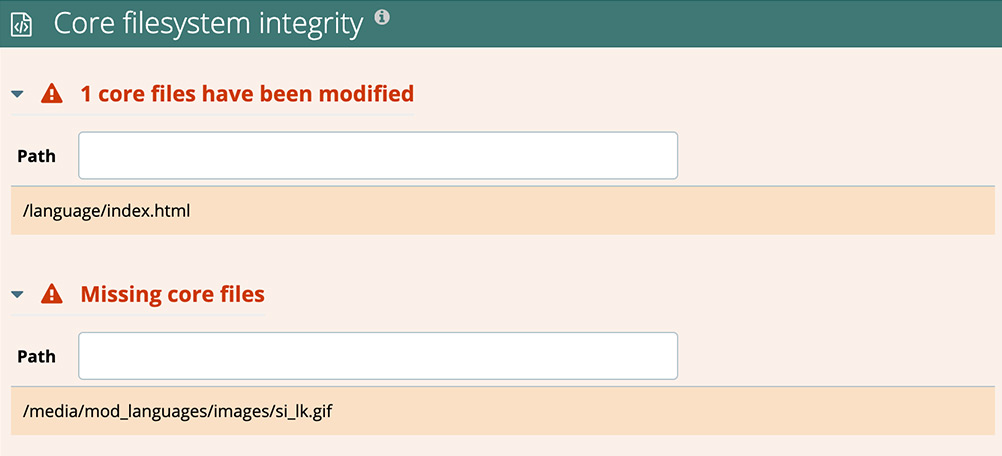
This audit checks if any of the files distributed in the core WordPress or Joomla packages have been modified or are missing. As shown below, the path to any missing or modified files is shown so it can be replaced with an original copy.
Permissions audit
For most PHP-based CMS like WordPress and Joomla, files and folders should be set to specific permissions that allow for a combination of public accessibility on the web with editing restricted to users with appropriate privileges. System administrators refer to these permissions with the following codes:
- 0644 — permissions for individual files
- 0755 — permissions for folders
The File & Folder Permissions audit checks every file and folder in your WordPress or Joomla installation to make sure the permissions match this list. Any files or folders with permissions that do not match are flagged and listed in the audit results.
The preview below shows the result when file and folder permissions are set properly.

Signature scan
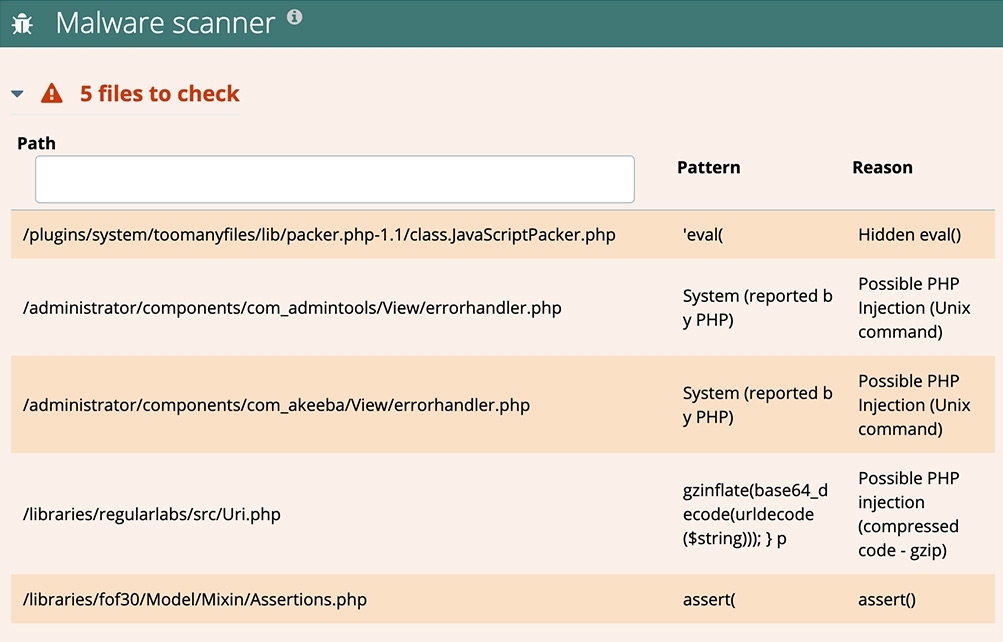
The Signature Scan is a deep, inside-out scan that looks for common malware signatures and suspicious code. If any suspicious code is found, the files and suspicious pattern will be displayed as shown in the sample below.
Note: False-positives are common with signature scanners. Please check with the relevant software vendor if you have any questions about suspicious files identified by the malware scan.
Malware scan
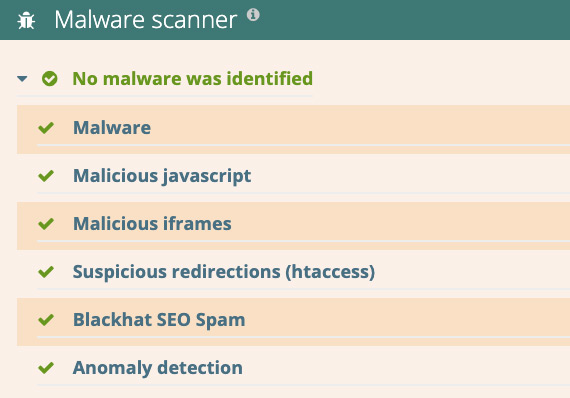
The Malware scan is scans the frontend of your website for common malwares, malicious javascript, blackhat SEO and more. In general, the following items are scanned:
- Website malware
- Injected spam
- Website defacements
- Internal server errors
Here is a preview of the results:
Blacklist scan
The Blacklist scan will check to see if any of your sites are blacklisted and thus marked unsafe. Blacklisted sites are very problematic for site owners and should be avoided at all costs.
The following blacklist services are checked by Watchful:
- Google Safe Browsing
- McAfee
- Sucuri Labs
- ESET
- PhishTank
- Yandex
- Opera
Scan Retention Times
Results from vulnerability scans are saved for different lengths of time depending on the type of plan:
- Free plan - 7 days
- Legacy plan - 30 days
- Premium plan - 90 days
Troubleshooting
Review this dedicated troubleshooting page for help with the Vulnerability Scanner.
Search Knowledge base
Most popular
- Add a Joomla website to Watchful
- Add a website to Watchful
- Add a WordPress website to Watchful
- Does Watchful support managed hosts like WP Engine, Flywheel, and Pantheon?
- How do I generate reports for my clients?
- How to add Tags to your WordPress & Joomla websites in Watchful
- How to use the Auto Update Scheduler
- How to use the Auto Updater
- Managing your auto-updating softwares
- Three ways to backup your website with Watchful